
Exporting your sales from MarketTime
How a rep exports 18 months of orders from MarketTime's Sales Analysis report, ready for MaraMinder.
Before you start
You need two reports from MarketTime, and MaraMinder needs both before any email goes out:
- Sales Analysis: 18 months of one rep's orders, so MaraMinder can spot which stores are due to reorder. The steps below.
- Order Code report: the same report grouped by Order Code, which shows which store lines came through Faire, so they're never contacted. See The second report further down.
Each takes about five minutes in MarketTime.
- One rep per file. MaraMinder signs each rep's emails with their own name, so export each rep separately.
- You'll need a MarketTime login that can open Reports and Analytics.
- Not the Orders screen's Export all. The list of orders on MarketTime's Orders screen has an Export all button, but that file has one row per order, without the items or the buyers' emails, so MaraMinder can't use it to show which stores are due. Use the Sales Analysis report below.
Export steps
- Open the report. In MarketTime, go to Reports and Analytics → Sales Analysis. Check that Standard is selected under Choose type.
- Set the grouping. Under Group By, make the four rows match the table below exactly.
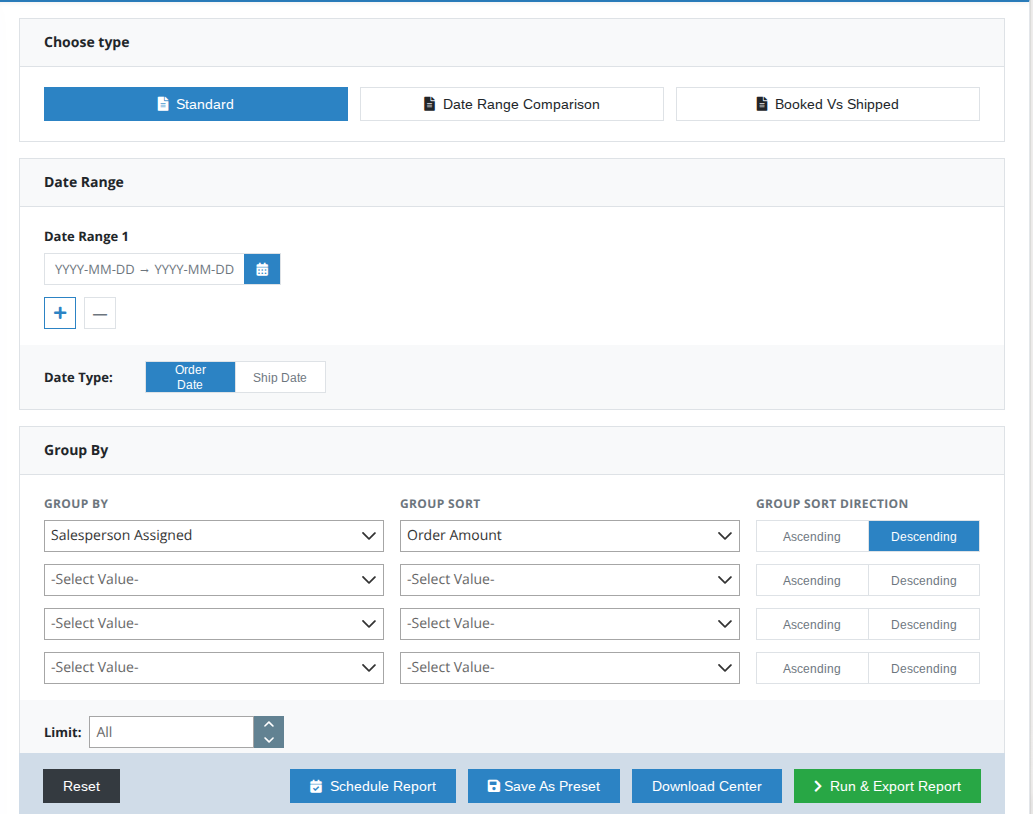
How Group By looks when you open the report. Row 1 is already filled in, with the wrong value:
Set it to this:
| Group By | Group Sort | Group Sort Direction |
|---|---|---|
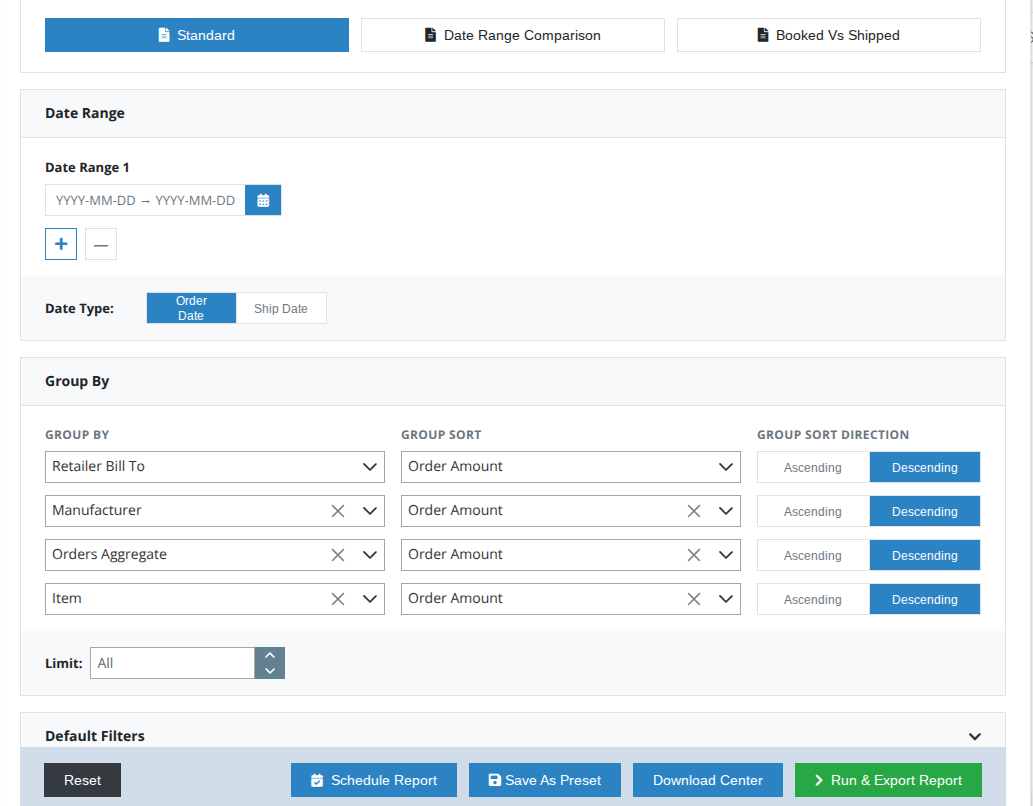
| Retailer Bill To | Order Amount | Descending |
| Manufacturer | Order Amount | Descending |
| Orders Aggregate | Order Amount | Descending |
| Item | Order Amount | Descending |
Watch the first row: it starts out set to Salesperson Assigned. Change it to Retailer Bill To. The other three rows start blank, and MarketTime shows an error if any box is left empty. Limit already says All; leave it.
When it's right, it looks like this:
- Pick the dates. Under Date Range 1, click the calendar button and choose Custom Range. Type in the two dates below, then click Apply. Leave Date Type on Order Date.
That's 18 months back from today, worked out for you. Type them in exactly as shown.
- Leave Default Filters as they are. Scroll down to Default Filters and don't change any of them, including Rep Group Order Status. MaraMinder sorts out cancelled orders itself.
-
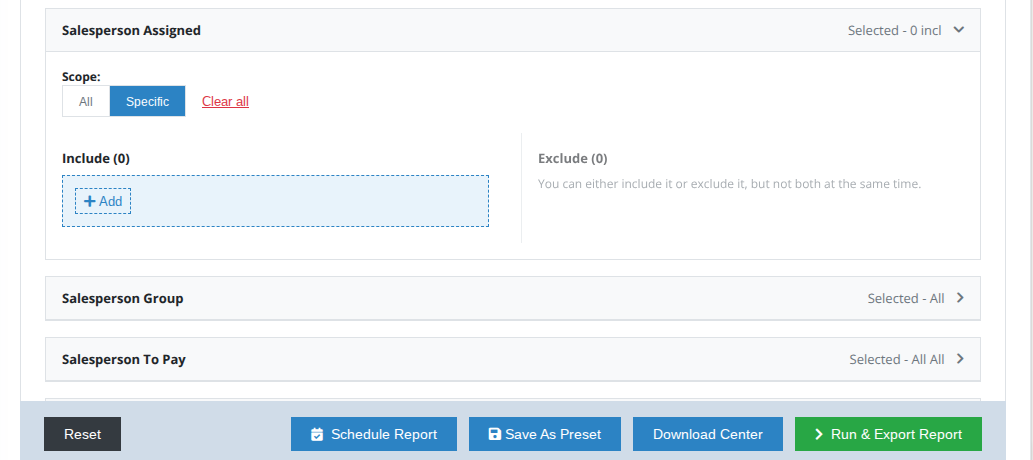
Choose the rep. Keep scrolling to Salesperson Assigned and click it. Choose Specific, then + Add, and pick the one rep this file is for.
-
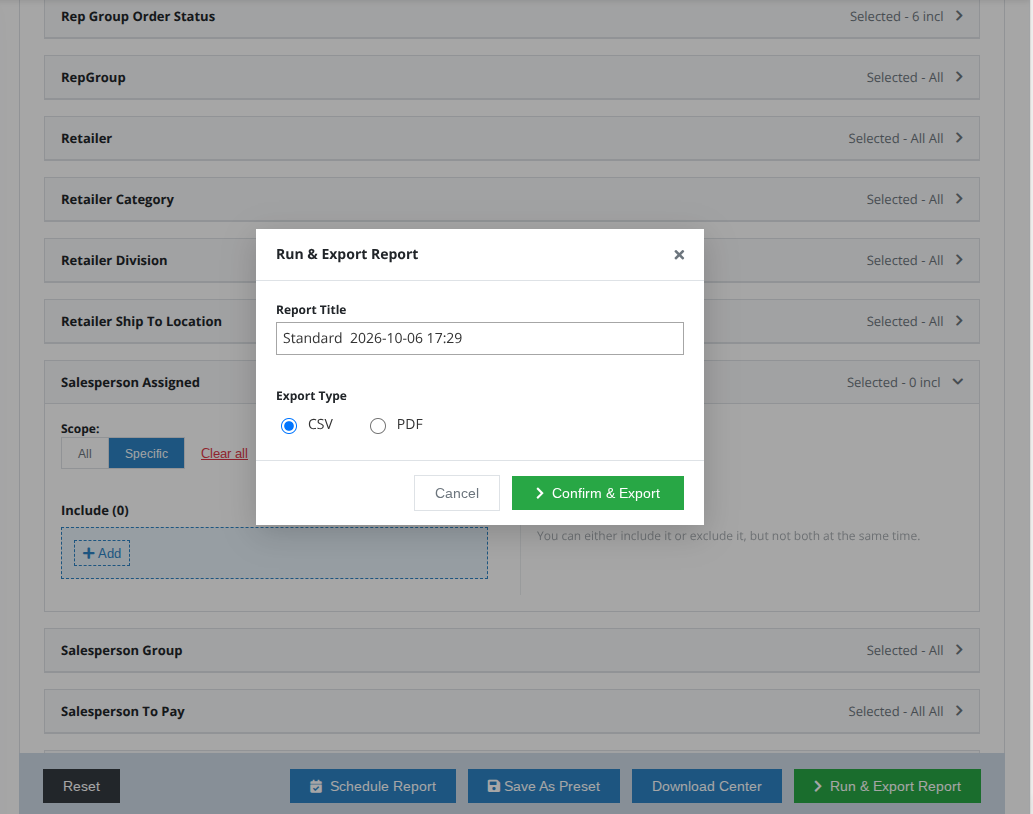
Run and export. Click the green Run & Export Report button at the bottom. Choose CSV, name the report with the rep's name and today's date, and click Confirm & Export.
-
Download it. Go to Download Center in the main menu, find the report by its name, and download it. It may take a minute to appear.
- Send it on. Add the file to MaraMinder yourself, in about a minute. Stuck? Book a call with Nick.
The second report: how each order came in
The orders report doesn't say which orders came through Faire, and MaraMinder never contacts a store about a line it only ever ordered through Faire. So run one more report, the same way:
- Same report, same dates, same rep. In Sales Analysis, keep Standard, the same Date Range 1 and the same Salesperson Assigned.
- Set the grouping. Under Group By, make the four rows match the table below exactly.
Set it to this:
| Group By | Group Sort | Group Sort Direction |
|---|---|---|
| Retailer Bill To | Order Amount | Descending |
| Manufacturer | Order Amount | Descending |
| Order Code | Order Amount | Descending |
| Orders Aggregate | Order Amount | Descending |
What's different from the first report: row 3 is now Order Code, and Orders Aggregate moves down to row 4. There's no Item row. Limit stays All.
When it's right, it looks like this:

- Run and export as CSV, then download it from Download Center, as before.
It's one line for each order, with how it came in (ROAD, WEB, Faire, the trade shows...) and its date. Send it with the orders file. In MaraMinder, add it on the Faire stores card on Your data: it needs no columns checked. With the dates, MaraMinder can tell which show a store's first order came from.
An older version of this report with only three rows (no Orders Aggregate) still works for Faire, without the dates.
A line where some orders came through Faire and some through you (on the road, at a show, on the web) is your account, and MaraMinder can email it. Only a line where every order came through Faire is left alone.
Next time: save a preset
Once steps 2 to 4 are set, click Save As Preset at the bottom of the page. Save the Order Code report as a second preset too. Next time, load each preset, change the dates and the rep, and go straight to Run & Export Report.